How to Build a Website with Bluehost AI Builder (Step-by-Step Guide)
Bluehost AI Builder can turn a plain-language brief into a working website, then let you revise it through chat. This guide walks through the complete process—from writing a useful prompt to checking the pages, replacing sample information, testing mobile layouts and publishing—using the business website I built in the accompanying demonstration.
Affiliate disclosure: I may earn a commission if you purchase through links in this article, at no extra cost to you. My walkthrough reflects hands-on use, and I’ll call out practical limitations as well as strengths.
Quick answer: how do you make a website with Bluehost AI Builder?
Open Bluehost AI Builder, describe the business and website you need, answer its clarifying questions, and let it generate a first version. Review the site, request focused edits in chat, replace fictional content with real information, test each page and form, then publish. You can publish on a free automatically assigned Bluehost address; connecting a custom domain requires a paid plan. Bluehost’s current Free plan includes five build credits per day, capped at 30 per 30-day period. One prompt that changes the site uses one credit; previewing, publishing and hosting do not.
This is a visual, conversational builder—not WordPress. It’s useful for getting a business presence online quickly, but you should treat AI-generated copy, images, contact details and sample records as draft material that needs human review.
What is Bluehost AI Builder?
Bluehost AI Builder is a hosted website and web-app creation tool. You describe what you want in ordinary language, optionally attach a logo or photos (or provide a reference website for visual direction), and the builder generates the site. You can continue refining it by asking for edits in chat, preview changes and publish from the same workspace. Coding knowledge is not required.
It can produce business websites, portfolios, landing pages and blogs, as well as browser-based tools such as booking or request forms. These are web experiences, not native iOS or Android apps. The builder is also distinct from WordPress: it does not install a WordPress site or use the WordPress dashboard. If you specifically want WordPress themes, plugins, portability and its publishing ecosystem, consider a WordPress hosting workflow instead.
.app.bluehost.ai address, but free
builder sites are not indexed by search engines. Connecting your own domain
requires a paid plan. Confirm plan terms and billing on Bluehost’s live
pricing page before you commit, because offers and pricing can change.
See current Bluehost AI Builder plans.Before you start: plan the site you want
The best results come from a clear brief, not a long prompt stuffed with vague adjectives. Before opening the builder, decide what the business does, who the site serves, what action visitors should take and which pages support that action. Gather your actual logo, images, service details, location, business hours, email and phone number. This makes it easier to spot placeholders in the generated draft.
A practical initial prompt can follow this pattern: “Create a [type of site] for [business] serving [audience/location]. The main goal is [visitor action]. Include [pages/sections], use [brand style], and use the attached [logo/photos]. Do not invent customer reviews, addresses, prices or certifications; mark missing facts for me to fill in.”
How to build a website with Bluehost AI Builder: step by step
Open the builder and choose a starting point
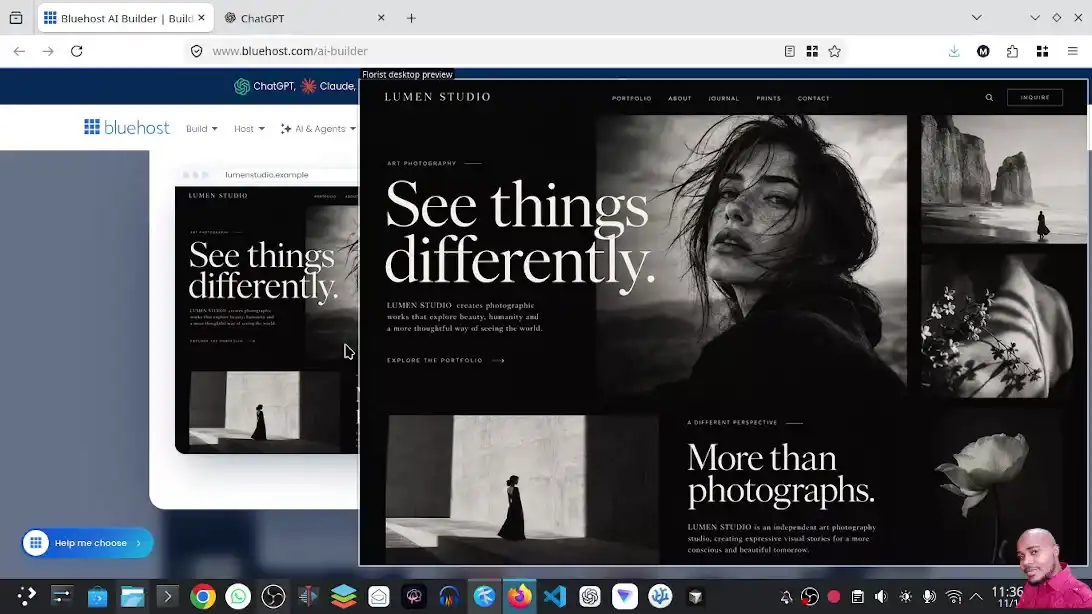
Go to the Bluehost AI Builder page and start a project. You may be shown example templates or starter prompts. Browse them to understand the range of layouts, but treat them as inspiration; the business brief you provide will determine the actual design and content. In my video, the sample gallery includes business, restaurant and photography-style examples, with desktop and narrow-screen previews.
Write your brief and attach useful brand assets
Describe the organization, intended audience, location, core services and next step you want a visitor to take. Then list the pages or content sections you need. If the builder supports uploads in your current flow, add your logo and genuine photographs. You can also provide a reference site for style direction; use it to communicate layout preferences, not to copy another site’s protected text, images or branding.
My test prompt was for a business and consulting website. I supplied the brief, started the build and let the builder generate an initial brand and page structure. You can see the prompt being entered in the video above.
Create an account and answer the builder’s questions
Sign in or create a Bluehost account when prompted. The AI may ask short follow-up questions about the site’s purpose, look or desired action. Answer with specific choices: “book a 30-minute consultation” is more useful than “get more leads.” Bluehost’s current plan documentation says clarifying questions do not consume credits; the message that starts or changes the build does.
Wait for the first version, then inspect every page
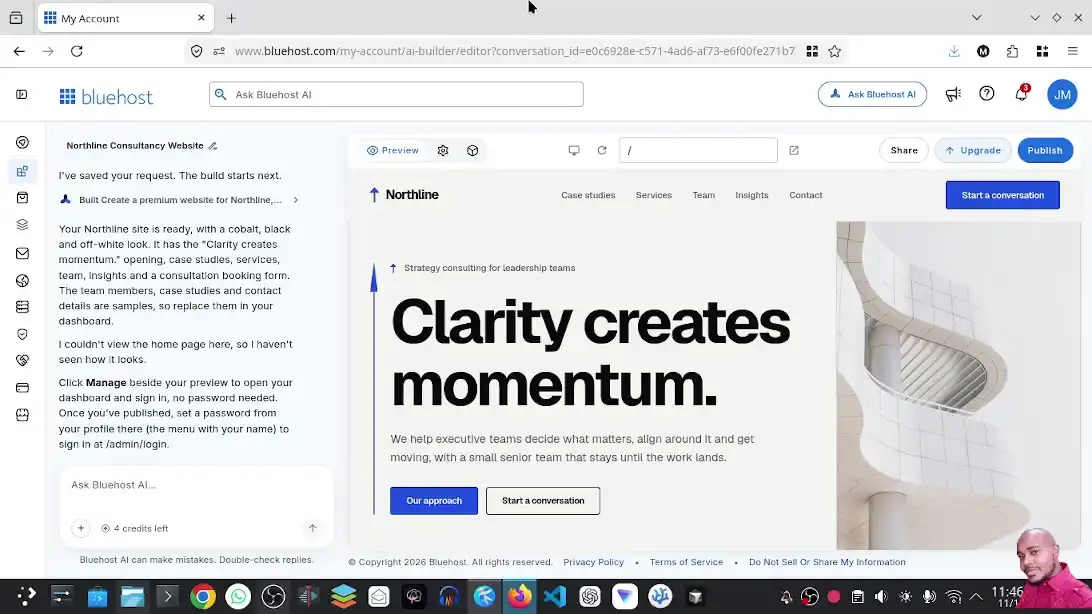
The generation time depends on the brief and service conditions. When the first draft is ready, scan the homepage first, then use the navigation to check every page. In my recorded build, the AI created a consulting-style brand called Northline, a homepage, blog/insights content, services, case studies, team and contact areas, plus a dashboard. The generated copy and entries were mock data, so they were examples of layout—not publish-ready facts.
Check that the navigation names make sense, page sections are relevant, buttons have meaningful destinations and the layout reflects the business you described. Ask for a targeted rewrite if a page is missing or the content is generic.
Refine the design with small, precise requests
Use the chat panel to request one coherent change at a time: “Change the hero headline to focus on operations consulting,” “Move the consultation button above the fold,” or “Remove the case studies page and add an About page.” Check the result after each edit. Avoid asking the AI to change many unrelated things in one message; when one part goes wrong, it becomes harder to identify and undo.
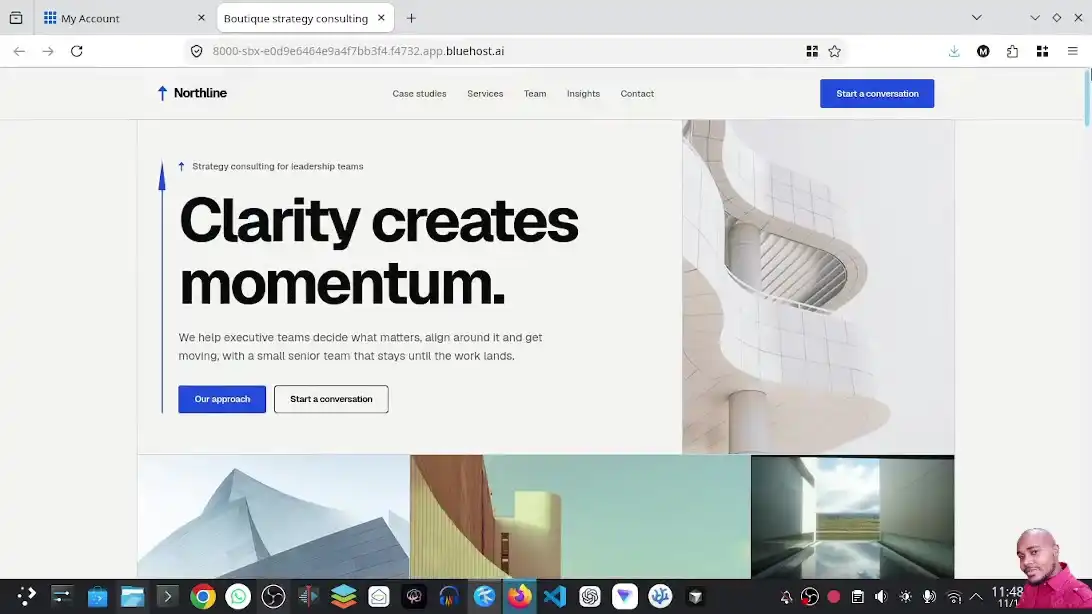
In the recording, the homepage has a strong headline, clear buttons and a consistent visual style. I tested the visible calls to action and navigated between several pages. Still, test all links yourself after your own edits; a button that looks right is not proof that it leads to the right place.
Check the mobile layout and interactions
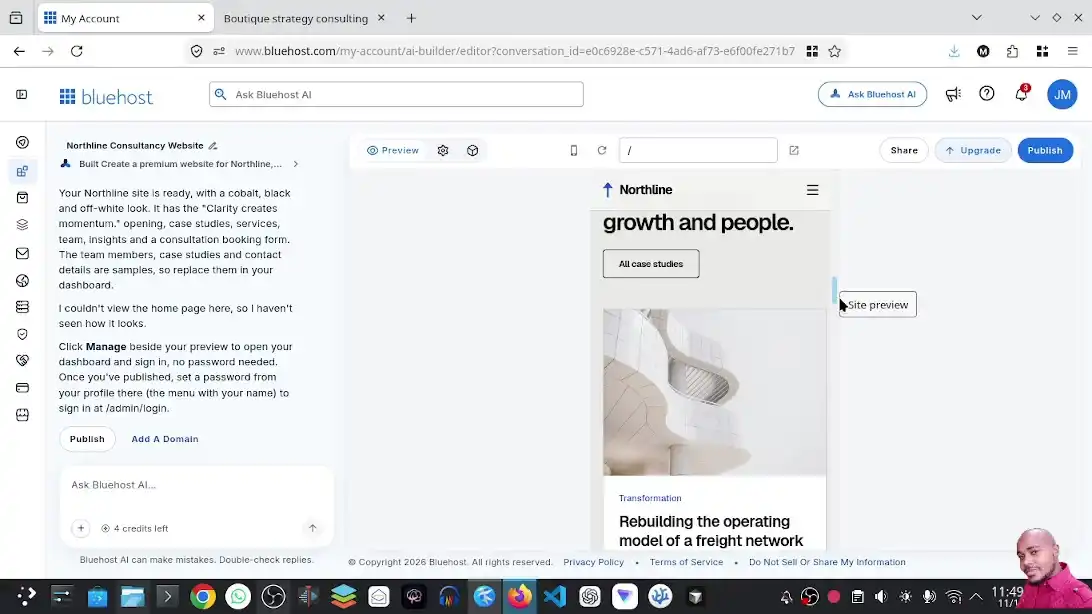
Switch to the mobile preview, then look at the full page from top to bottom. Check menu behavior, text size, spacing, image crops, button tap areas and forms. My recording shows a narrow-screen layout adapting without manual CSS work, including the footer and navigation. That is a useful first pass, but still check on a real phone if you can: responsive layout and usability are related, but not the same thing.
This matters for search as well as visitors. Google uses the mobile version of a site’s content for indexing and recommends mobile-friendly pages. Responsive design serves the same page across screen sizes while adapting its presentation. Google Search Central: mobile-first indexing guidance.
Open the site’s management area and replace sample data
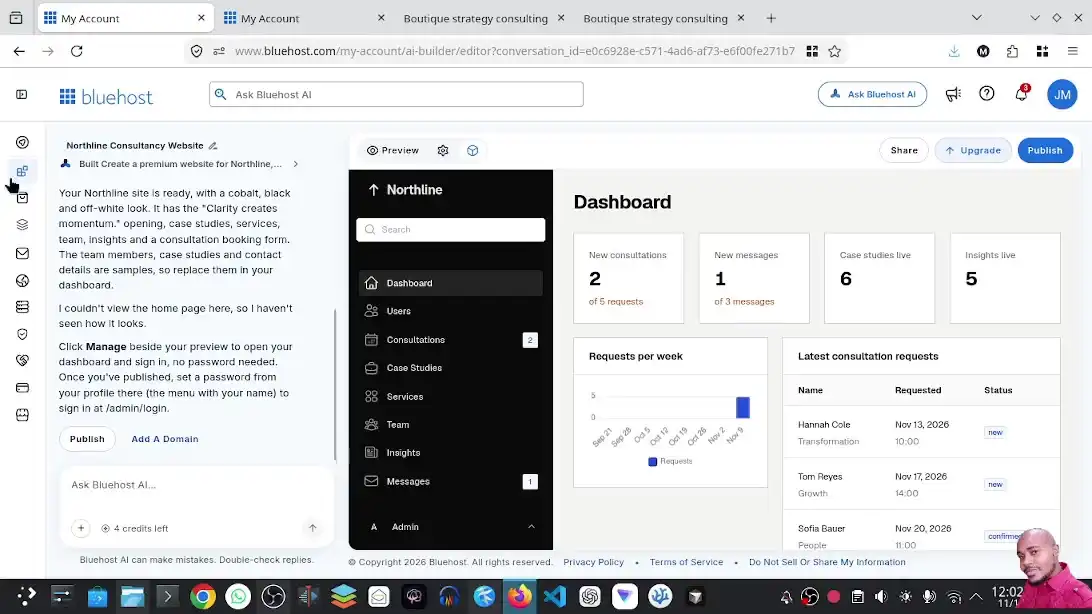
Use the project’s Manage area to inspect the dashboard and editable records. The demo showed business details, users, messaging and blog/insight entries. Some dashboard metrics, testimonials, articles, customer records and contact information were sample content. Replace or remove them—especially fictional addresses, phone numbers, email addresses, opening hours, case studies and customer claims.
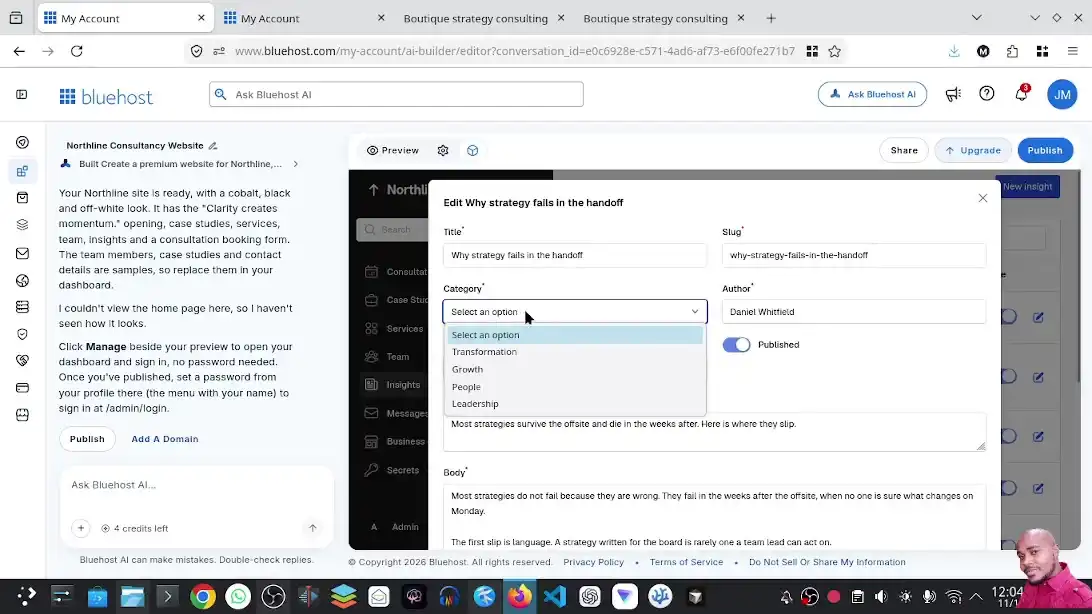
Check the blog editor fields, including title, category, author, slug, publication date, body and image. If you intend to publish articles regularly, test the complete editing and publishing workflow before committing to this builder as your main content platform.
Set project details, domain and launch settings
Check the project name and public preview URL in settings. When you are ready, publish to the generated Bluehost address for a shareable preview. For a branded production website and search visibility, connect a domain under an eligible paid plan and follow Bluehost’s domain instructions. The current help page notes that free-plan addresses are not indexed by search engines; do not mistake a live preview URL for a search-ready custom-domain launch.
Before paying, verify the renewal price, credit allowance, domain registration/renewal charges, included services and cancellation terms on the checkout screen. A domain you already own may be connected; domain registration is a separate cost consideration.
Test the published website as a visitor
Open the live link in a private browser window and test the main menu, contact details, forms, email notifications, booking or quote flow, social links and every prominent call to action. Confirm that form submissions arrive where expected. Check that no placeholder content survived, the SSL lock is present, and important pages have sensible titles and descriptions. Publish again after edits if the preview and public version differ.
Watch the full Bluehost AI Builder walkthrough
The embedded video shows the sample gallery, prompt, generated consulting website, responsive preview, project management dashboard and content editing flow.
Two website examples made with Bluehost AI Builder
These are live examples from my builds. Open them on desktop and mobile to get a feel for the visual output and responsive behavior. The projects use Bluehost’s generated preview domain, so treat them as demonstrations rather than a promise of the final branded setup for your business.
Bluehost AI Builder plans, credits and the real cost to publish
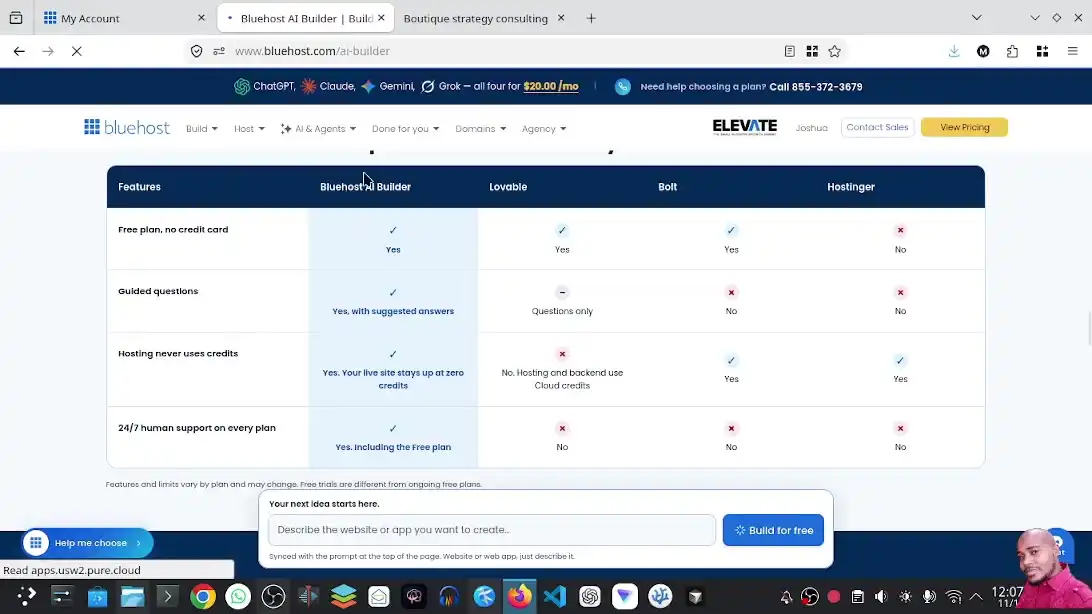
As of November 11, 2026, Bluehost’s public AI Builder pricing cards list Free, Lite and Standard. Hosting is included; the paid plans differ by monthly credits and allow you to connect your own domain. The listed monthly prices are $20 for Lite and $40 for Standard. Verify current checkout details before purchase because pricing and offers can change.
| Plan | Credits | Publish address | Listed monthly price |
|---|---|---|---|
| Free | 5/day, up to 30 per 30 days | Generated .app.bluehost.ai address | $0 |
| Lite | 100/month | Connect your own domain | $20/month |
| Standard | 200/month | Connect your own domain | $40/month |
Monthly credit allowance on the listed paid plans
A visual comparison of the current pricing-card allowances; Free uses a daily limit with an overall 30-day cap.
Source: Bluehost AI Builder pricing page, checked November 11, 2026. The chart includes the plans shown in its pricing cards at that time.One message that builds or changes the site uses one credit, even if the change is small; failed builds may also consume a credit, according to Bluehost’s help documentation. Asking questions, attaching files to a request, previewing, publishing and hosting do not use build credits. Credits expire rather than rolling over. This makes planning worthwhile: combine related details into a clear build request, but keep subsequent revisions focused enough to evaluate.
SEO checklist for a Bluehost AI Builder website
The builder can produce page content, titles, descriptions and image alt text, but automated output is only a starting point. Review each item against the real business and search intent. For more context, see our guides to creating a website with AI and our Bluehost web hosting review.
- Use a custom domain: Free generated addresses are useful for demos but Bluehost says they are not indexed.
- Write useful, original pages: Replace generic text with first-hand expertise, real services, locations and specific customer questions.
- Review titles and descriptions: Make every important page distinct and accurately summarized.
- Check image alt text: Describe useful image content; avoid keyword stuffing or fabricated context.
- Make links descriptive: Link related services, examples and articles with clear anchor text.
- Test the mobile experience: Google indexes the mobile version, so verify menus, content and forms at phone widths.
- Confirm indexing settings: After connecting a domain, inspect the published site and Search Console configuration for crawl or indexing issues.
If you are comparing AI website tools, read our guides to building with Google Antigravity, Google AI Studio and Lovable AI.
What Bluehost AI Builder does well—and where it has limits
In the video, the first generated draft looked polished and navigation was straightforward. The most important caveat from hands-on use was the amount of sample data: attractive mock content can make a site appear ready before the claims and details are real. I would use the builder for a quick small-business or service-site launch when its feature set fits, and compare other tools if WordPress extensibility, a full commerce system, advanced SEO controls or long-term portability are key requirements.
Frequently asked questions
Is Bluehost AI Builder free?
Bluehost currently offers a Free plan with five credits per day, up to 30 per 30-day period, and no card required. You can publish to a generated Bluehost address. Connecting your own domain requires a paid plan; check live terms and prices.
Can I build a website without coding?
Yes. You describe the website in natural language, review the generated draft and request changes through chat. You should still review content, links, forms and mobile behavior before publishing.
Can I use my own domain with the free plan?
No. Bluehost currently requires a paid AI Builder plan to connect a domain you own. Free projects use an automatically assigned .app.bluehost.ai address.
Will a free Bluehost AI Builder site appear in Google?
Bluehost says sites on the free generated address are not indexed. To pursue search visibility, connect a custom domain on a paid plan and publish; indexing and ranking are never guaranteed.
Does Bluehost AI Builder create a WordPress site?
No. AI Builder is a distinct hosted site and web-app product. It does not create a WordPress installation. Choose a WordPress-specific product if you need WordPress themes, plugins or its publishing ecosystem.
How many credits does an edit use?
Bluehost says each message that creates or changes the site uses one credit, whether it is a large feature request or a small change. Questions that do not change the site, previewing, publishing and hosting do not use credits.
Can I sell products through it?
Check Bluehost’s current product guidance before planning commerce. Its current AI Builder walkthrough documentation says online payments and selling products are not supported in AI Builder and points users to AI Store for selling online.
Is Bluehost AI Builder good for SEO?
It can generate search-ready page elements, but SEO depends on a crawlable custom-domain launch, helpful unique content, technical setup, mobile usability and ongoing work. AI-generated metadata alone does not produce rankings.
Final verdict
Bluehost AI Builder offers a straightforward way to turn a clear business brief into a designed, responsive first website and refine it without writing code. In my walkthrough, it produced a credible consulting-site layout, several linked pages, mobile previews and a dashboard with editable content. Those qualities make it a practical starting point for a simple business presence.
Think of the generated result as a draft: replace fictional data, verify every interaction, test real forms, and understand the custom-domain and credit requirements before launch. If that workflow matches your needs, try Bluehost AI Builder here. If you need WordPress, compare it with our Bluehost hosting review and the other AI website guides linked above.
Sources checked November 11, 2026: Bluehost AI Builder product and pricing; Bluehost AI Builder FAQ; Google Search Central mobile-first indexing. Plan terms may change; consult the linked official pages for current details.