How to Set Up a Proxy Server on Windows and Mac
Before changing network settingsSet Up the Right Proxy in the Right Scope
Windows and macOS both provide built-in proxy controls, but those settings are not universal traffic tunnels. They are routing instructions followed by compatible browsers, applications, or operating-system services.
Successful setup starts with four verified details: the proxy type, server address, port, and authentication or PAC information. You also need to know which applications should use it and which destinations—if any—must connect directly. This guide covers manual configuration, automatic discovery, PAC files, application overrides, testing, troubleshooting, and safe removal.
Windows 11: open Settings → Network & internet → Proxy, then use automatic detection, an approved setup script, or Manual proxy setup → Set up. Enter the server and port, review the bypass list, save, and test a proxy-aware app.
macOS: open Apple menu → System Settings → Network, select the active network service, choose Details → Proxies, enable the correct proxy type or PAC option, enter the supplied values, and click OK.
System proxy settings do not guarantee that every app, protocol, DNS query, or background service uses the proxy. Confirm the actual application and never invent the address, port, credentials, PAC URL, or bypass list.
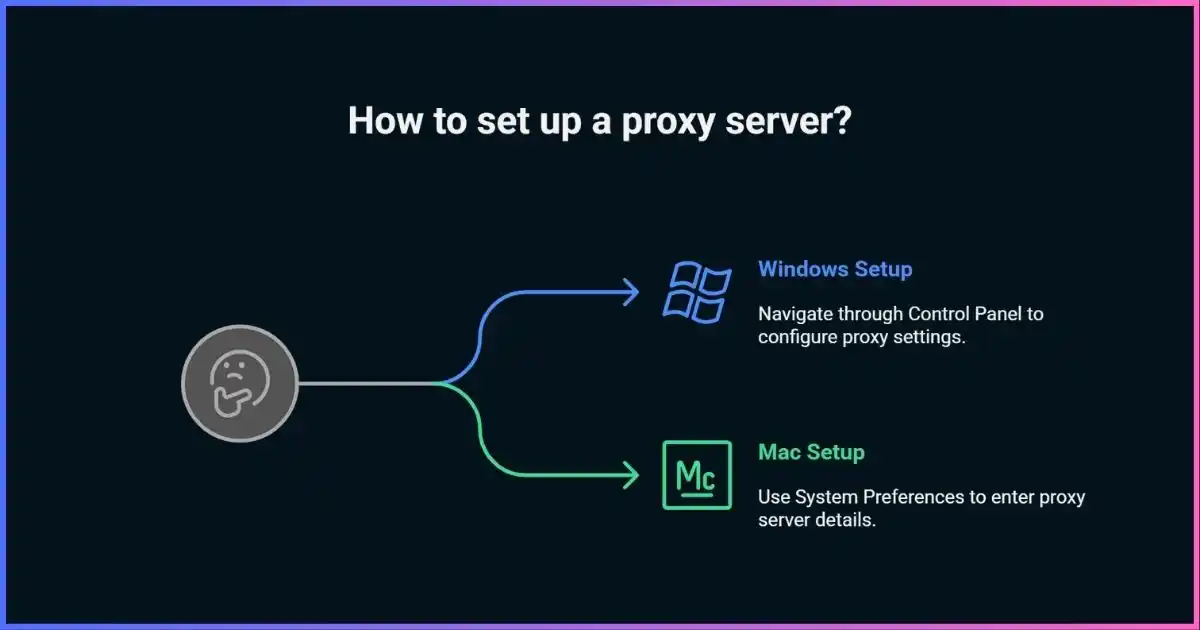
Table of contents
Do not guessWhat You Need Before Configuring a Proxy
A proxy endpoint is not discovered from a generic “free proxy” search. Obtain its details from your network administrator or a provider you have vetted. The correct information depends on whether the network uses manual settings, automatic discovery, or a proxy auto-configuration file.
For manual setup
- Proxy protocol or settings category
- Hostname or IP address
- Port number
- Username/password, if required
- Destinations that must bypass the proxy
For automatic setup
- Approved PAC-file URL, or
- Confirmation that WPAD/auto-discovery is required
- Network on which discovery is trusted
- Expected fallback: proxy, direct, or both
For testing
- Expected exit IP/network
- A known HTTPS site
- An app that should use the proxy
- An app or internal host that should bypass it
- Provider support/contact details
Never accept blindly
- Unknown root certificates
- Credentials requested by a lookalike page
- Public open-proxy lists
- Untrusted PAC URLs
- Instructions to disable TLS validation
The key limitationWhat System Proxy Settings Actually Cover
A forward proxy accepts traffic from software configured to use it. Windows and macOS expose system settings that many browsers and applications follow, but applications can use their own networking stack, ignore the system proxy, ship an internal proxy option, or open protocols the configured proxy does not support.
Configuration scope map
These are distinct control planes. Changing one does not prove the others changed.
| Traffic or app | Usually follows OS web proxy? | What to verify |
|---|---|---|
| Edge, Chrome, Safari | Generally | Browser policy, extensions, HTTPS and PAC behavior |
| Firefox | Configurable | “Use system proxy settings” versus Firefox manual/PAC settings |
| Command-line tools | Varies | Tool flags, environment variables and build-specific behavior |
| Windows services / WinHTTP apps | Separate scope | WinHTTP configuration and organizational policy |
| Games, voice, UDP and custom apps | Often not | Native proxy support, protocol and whether direct traffic remains |
| DNS resolution | Depends | Whether the app resolves locally or sends the hostname to the proxy |
| VPN connection | Separate | VPN-specific proxy or tunnel routing settings |
Windows 11Set Up a Proxy in Windows Settings
Microsoft’s current Windows proxy setup documentation supports automatic detection, a setup script, or manual configuration for Windows 11 and Windows 10. These settings apply to compatible traffic over Wi-Fi and Ethernet. A VPN connection’s proxy is configured separately.
Manual proxy setup on Windows 11
- Open Settings.Press Windows + I, or open Start and select Settings.
- Open the Proxy page.Select Network & internet → Proxy.
- Open Manual proxy setup.Next to Use a proxy server, select Set up.
- Enable the proxy.Turn on Use a proxy server.
- Enter the endpoint.Put the supplied proxy hostname or IP in Proxy IP address and its numeric value in Port.
- Review exceptions.If authorized, enter suffixes or hosts that must connect directly. Separate multiple entries with semicolons. A pattern such as *.example.com; intranet.example creates direct routes for those matches.
- Choose local-address behavior.“Don’t use the proxy server for local (intranet) addresses” bypasses short/internal destinations. Follow organizational policy—bypasses are direct connections.
- Save and test.Select Save, then test a proxy-aware browser. If authentication is required, the app or Windows may prompt on first use.
Manual exceptions are direct connections
Windows accepts multiple exception entries separated by semicolons and supports wildcard suffix patterns. Add only destinations that genuinely must avoid the proxy. A broad pattern can leak traffic or bypass organizational inspection, while a missing internal exception can make intranet resources fail.
Windows automationUse Automatic Detection or a PAC Script
Automatic proxy detection
- Open Settings → Network & internet → Proxy.
- Under Automatic proxy setup, enable “Automatically detect settings.”
- Reconnect to the intended trusted network if required.Discovery is network-dependent; it is not proof that a proxy was found.
- Test expected internal and external destinations.If settings are organization-managed, contact IT rather than adding a competing manual configuration.
PAC/setup script
- On the Proxy page, select Set up next to “Use setup script.”
- Enable “Use setup script.”
- Enter the full approved script address.Do not paste a proxy server address into the PAC URL field.
- Select Save.Close and reopen affected apps if they retain the previous PAC decision.
FindProxyForURL(url, host)—that returns choices such as a proxy, SOCKS endpoint, or DIRECT. It can choose different routes by host or network. Because it controls routing, a PAC URL must be treated as security-sensitive configuration.Proxy for a Windows VPN connection
If an organization requires a proxy only while a specific built-in VPN profile is active, open Settings → Network & internet → VPN, select the VPN connection, open its advanced options, and edit the proxy settings for that connection. Do not assume the general Wi-Fi/Ethernet proxy automatically supplies the VPN-specific requirement.
Administrators and developersWindows Proxy Scopes, WinHTTP and App Overrides
Windows has more than one proxy control plane. The Settings/Internet Options proxy is primarily a per-user web proxy used through Windows internet APIs and by applications that honor it. WinHTTP is a separate Windows HTTP Services configuration used by some services and applications. Changing one does not guarantee the other changes.
Inspect WinHTTP
In an elevated terminal, administrators can inspect the current configuration:
netsh winhttp show proxy netsh winhttp show advproxyThe older basic show proxy form remains common but Microsoft marks some basic commands deprecated in favor of advanced proxy controls.
Do not copy settings blindly
Importing or setting WinHTTP affects software that uses that API and may require administrator rights. It can disrupt updates, activation or services if authentication, bypass rules, PAC support or machine context differs.
Environment variables such as HTTP_PROXY, HTTPS_PROXY and NO_PROXY are conventions used by many developer tools, not universal Windows settings. Their case sensitivity, URL syntax, credential handling and precedence differ by tool. Consult that application’s documentation and never store reusable secrets in shared shell history or scripts.
Current macOSSet Up a Proxy on Mac
Apple’s current macOS proxy instructions configure proxies per network service. That means Wi-Fi and Ethernet can have different settings. Make changes on the active service and repeat only if another service genuinely needs the same proxy.
Manual proxy setup on macOS
- Open System Settings.Choose Apple menu → System Settings.
- Select Network.Choose the active service—usually Wi-Fi or Ethernet—then click Details.
- Open Proxies.Select Proxies in the service details.
- Enable the supplied type.Options can include Web Proxy (HTTP), Secure Web Proxy (HTTPS), and SOCKS Proxy. Enable only what your provider or administrator specified.
- Enter address and port.Use the exact server hostname/IP and port for each enabled type.
- Add authentication if required.Enable Proxy server requires password, then enter the supplied username and password. On managed networks, prefer approved credential storage and rotation.
- Review bypass rules.Add hosts or domains that should connect directly. “Exclude simple hostnames” bypasses names without dots, commonly used for intranet hosts.
- Save.Click OK, then test the intended application and route.
| macOS option | What it configures | Common use | Key caution |
|---|---|---|---|
| Web Proxy (HTTP) | HTTP proxy endpoint | Web traffic and filtering | Does not mean client-to-proxy encryption. |
| Secure Web Proxy (HTTPS) | Secure-web proxy category | HTTPS web connections via proxy | “HTTPS proxy” terminology is ambiguous; confirm transport and TLS handling. |
| SOCKS Proxy | SOCKS relay | Compatible protocol-agnostic apps | SOCKS itself does not encrypt payloads. |
| Auto Proxy Discovery | Network-provided discovery | Managed LANs | Use only on networks where discovery is expected and trusted. |
| Automatic Proxy Configuration | PAC URL | Conditional enterprise routing | The PAC script can return proxy or direct routes. |
| Bypass list | Direct hosts/domains | Intranet or incompatible sites | Every bypass is outside proxy visibility/protection. |
macOS automationConfigure PAC or Auto Proxy Discovery on Mac
PAC file
- Open System Settings → Network.Select the relevant service and choose Details → Proxies.
- Enable Automatic Proxy Configuration.
- Enter the approved PAC URL.Keep other manual proxy types off unless the administrator explicitly requires both.
- Click OK and test.Check a destination expected to use the proxy and one expected to return
DIRECT.
Auto proxy discovery
Enable Auto Proxy Discovery only when the network administrator uses it. Discovery can obtain settings from the local network; it should not be enabled merely as a troubleshooting guess on arbitrary public Wi-Fi. Managed Macs may receive proxy configuration through device management.
Read-only command-line inspection
Advanced users can inspect macOS proxy state without changing it:
scutil –proxy networksetup -getwebproxy “Wi-Fi” networksetup -getsecurewebproxy “Wi-Fi” networksetup -getsocksfirewallproxy “Wi-Fi”Network service names vary. These examples query a service named “Wi-Fi”; they do not prove an individual app honors the result.
Application behaviorBrowser and App-Specific Proxy Settings
Chrome, Edge and Safari
These browsers generally direct users to the operating system’s proxy controls. Browser policies, extensions and enterprise management can still override behavior. Removing an extension does not remove an OS proxy, and disabling an OS proxy does not necessarily remove an app’s command-line or managed policy.
Firefox
Firefox exposes independent connection settings. In current versions, open Settings, find Network Settings or Proxy settings, and choose one of: no proxy, auto-detect, use system proxy, manual proxy, or automatic proxy configuration URL. If Firefox works while other apps do not—or the reverse—compare this selection first.
Developer tools
Git clients, package managers, containers, Java runtimes, Python/Node tooling and command-line downloaders may use their own settings or environment variables. Configure only the tool that requires the proxy, protect credentials, and document how to undo the change. Containers and virtual machines have their own network environment and may not inherit the host’s user proxy.
DNS and SOCKS hostname resolution
A proxy can receive a hostname and resolve it remotely, or the client can resolve the hostname locally and send an IP. The behavior depends on protocol and application. Labels such as socks5h in some tools explicitly request proxy-side hostname resolution, but they are application syntax—not a universal SOCKS setting. Test the actual app if local DNS exposure matters.
Choose correctlyHTTP, HTTPS, SOCKS5, PAC and Transparent Proxies
Proxy labels mix several dimensions. HTTP and SOCKS describe how clients communicate with the proxy; PAC describes automatic selection; datacenter, residential and mobile describe the exit network; rotating and static describe session behavior. See our comprehensive guide to types of proxy servers.
*“HTTPS proxy” may mean a proxy that tunnels HTTPS destinations or a proxy reached over TLS. Ask which hop is encrypted and whether destination TLS passes through or is inspected.
Qualitative setup reach
Scope illustration—not a speed, privacy or success score.
Use an authenticated provider, not a public proxy list
Confirm protocol, hostname, port, authentication, DNS behavior, permitted use and sourcing before entering settings.
Verify every layerHow to Test Whether the Proxy Works
- Record a direct baseline.Before enabling the proxy, note the public IP/network and confirm a known HTTPS site loads.
- Enable the proxy and reopen the app.Some applications cache settings or PAC decisions until restarted.
- Check the visible exit inside that app.The address should match the expected provider or organization. Testing in one browser proves only that browser’s route.
- Verify HTTPS without warnings.The site certificate should be valid for the destination. If an organization performs approved TLS inspection, its managed trust certificate and policy should already be documented.
- Test an authenticated destination.A 407 response means proxy authentication is required or failed; it is different from a website’s 401 login response.
- Test bypass entries.An internal or excluded host should connect directly as intended. Remove any unnecessarily broad bypass.
- Check DNS intent.Determine whether the app resolves hostnames locally or through the proxy. Do not assume a changed web IP means DNS also moved.
- Compare an app expected not to use it.This reveals whether scope matches your plan and prevents false device-wide claims.
Follow the symptomProxy Troubleshooting on Windows and Mac
| Symptom | Likely cause | What to do |
|---|---|---|
| No app can browse | Wrong host/port, dead endpoint or mandatory auth | Compare supplied settings; disable proxy to restore direct access; contact provider/admin. |
| One browser fails | App override, extension or cached PAC | Compare browser proxy mode, disable suspect extensions and reload/restart. |
| Browser works; system service fails | WinHTTP or service-account difference | Administrator should inspect WinHTTP, auth method and machine policy. |
| 407 Proxy Authentication Required | Missing/invalid proxy credentials | Re-enter approved credentials; confirm account, domain format and allowed auth scheme. |
| 401 Unauthorized | Destination account login | Authenticate to the website/service; changing proxy credentials will not solve it. |
| Certificate warning | Wrong destination, interception or untrusted certificate | Stop. Do not bypass validation or install an unknown root certificate. |
| Internal sites fail | Missing bypass or proxy cannot resolve internal name | Add only administrator-approved intranet exceptions or PAC rules. |
| External IP does not change | App ignores proxy, bypass match or transparent egress | Check app scope, PAC result, extension/policy and proxy provider behavior. |
| macOS Wi-Fi works; Ethernet fails | Settings applied to only one network service | Inspect the active service; configure separately only if required. |
| Settings revert | Device management, policy or security agent | Contact IT; do not repeatedly override managed configuration. |
| Slow or intermittent | Distance, congestion, overload, DNS or retry behavior | Test another authorized nearby endpoint and capture timing/error evidence. |
Fast recovery sequence
- Save the existing settings.Take a screenshot or record the approved PAC/manual details without exposing passwords.
- Check the exact error.Differentiate DNS, timeout, TLS, 407 and destination errors.
- Disable only the affected proxy layer.Test direct access. Do not reset unrelated network services.
- Restore one method.Use auto-detect, PAC or manual—not several competing settings unless required.
- Test one known app and site.Then expand testing to bypasses and other applications.
Return to direct accessHow to Disable or Remove Proxy Settings
Windows 11 and Windows 10
- Open Settings → Network & internet → Proxy.
- Manual: select Set up beside “Use a proxy server,” turn it off, and save.
- PAC: select Set up beside “Use setup script,” turn it off, and save.
- Auto-detect: leave it as required by the network; turning it off may break a managed environment.
- VPN-specific proxy: remove it from that VPN profile separately if no longer needed.
macOS
- Open System Settings → Network.
- Select the configured service → Details → Proxies.
- Turn off each manual, PAC or discovery option you previously enabled.
- Click OK and repeat only for another service that was separately configured.
Reduce avoidable riskProxy Security and Privacy Checklist
Good practice
- Use authenticated, accountable endpoints
- Keep destination HTTPS validation enabled
- Use the narrowest necessary scope
- Protect and rotate proxy credentials
- Review PAC and bypass ownership
- Remove settings when no longer required
- Test DNS and direct-bypass behavior
Common mistakes
- Assuming every app is proxied
- Calling SOCKS5 encrypted by default
- Embedding passwords in shared URLs/scripts
- Installing unknown interception certificates
- Using public open proxies for accounts
- Adding broad wildcard bypasses
- Confusing a proxy with malware protection
A proxy changes routing for configured traffic; it does not replace endpoint security. See VPN vs antivirus for the same boundary: routing and encryption tools do not scan every download or fix a compromised device.
For broader device coverage, a VPN may be a better fit. Read when to use a proxy instead of a VPN. For privacy expectations, see the reasons and limits of masking an IP address.
Common questionsWindows and Mac Proxy Setup FAQ
Does a Windows or Mac system proxy cover all traffic?
No. It covers applications and protocols that honor the relevant system settings. Some services, command-line tools, games, UDP traffic, containers and apps use separate networking or direct connections.
Where do I get the proxy address and port?
From your network administrator or proxy provider. Do not guess and do not use an unknown public list. Confirm protocol, authentication, PAC/bypass rules, permitted use and expected exit.
Can I configure SOCKS5 in Windows Settings?
The standard Windows manual Proxy page is oriented toward web proxy settings and does not provide the same explicit SOCKS selector macOS does. Configure SOCKS in a supporting app, browser, tunnel client or approved management solution.
Why does Firefox ignore my system proxy?
Firefox can use no proxy, auto-detection, system settings, manual settings or a PAC URL. Open its proxy/connection settings and choose “Use system proxy settings” if that is the intended configuration.
What is the difference between HTTP and HTTPS proxy fields?
They select proxy handling for different web schemes. The phrase “HTTPS proxy” is ambiguous: it may mean tunneling HTTPS destinations with CONNECT or reaching the proxy itself over TLS. Verify both the client-to-proxy transport and destination TLS behavior.
Why am I asked for a username and password?
The proxy requires authentication. A 407 response is a proxy-authentication challenge. Obtain credentials from the provider/admin; do not reuse a sensitive password or send it to an unknown proxy.
What is a PAC file?
A proxy auto-configuration file contains JavaScript that decides whether each URL/host should use a specified proxy or connect directly. Use only an approved URL because the script controls routing decisions.
Why do some apps work while others fail?
They may read different proxy scopes, lack support for the chosen protocol, resolve DNS differently, require UDP, use certificate pinning, or authenticate under different user/service accounts.
Will a proxy make browsing anonymous?
No. The proxy knows the source connection, and accounts, cookies, browser fingerprints and other identifiers remain. The logging policy, transport encryption, DNS path and operator ownership all matter.
Should I install a certificate supplied by a proxy?
Only when a trusted organization explicitly manages approved TLS inspection and you understand its policy. Never install an unknown root certificate merely to suppress browser warnings; it can authorize interception of secure traffic.
Bottom Line
On Windows 11, configure automatic detection, PAC, or manual settings under Settings → Network & internet → Proxy. On macOS, configure the active service under System Settings → Network → Details → Proxies. Use only supplied values and treat every bypass as a direct route.
Most importantly, test the application rather than assuming device-wide coverage. Windows user proxy, WinHTTP, app-specific settings, macOS network services, DNS and VPN routing are distinct layers. A proxy is an intermediary—not automatically an encrypted tunnel, anonymity system or security product.
Disclosure: This article contains affiliate links. If you purchase through one, we may earn a commission at no extra cost to you. Affiliate relationships do not change the configuration steps, scope warnings or security criteria.
Sources & comparison methodology
We reviewed current Microsoft and Apple proxy documentation, Windows WinHTTP administration guidance, Firefox connection behavior, HTTP and SOCKS standards, PAC behavior and the project’s proxy-protocol research. Unsupported industry adoption, benefit-distribution, speed, caching and privacy percentages were removed.
- Windows: Microsoft Support guidance for automatic detection, setup scripts, manual settings, bypass syntax and VPN-profile proxies; Microsoft Learn documentation for WinHTTP inspection and advanced proxy controls.
- macOS: Apple’s current System Settings path, per-network-service proxy types, authentication, PAC, discovery and bypass behavior.
- Applications: Mozilla documentation for Firefox system, manual, auto-detect and PAC modes; standard browser/OS integration behavior.
- Protocols: RFC 9110 for HTTP proxies and CONNECT, RFC 1928 for SOCKS5, and PAC documentation for conditional proxy selection.
- Method: instructions separate operating-system, app, WinHTTP, VPN, DNS and managed-policy scopes. Comparison visuals are qualitative capability maps, not performance scores.
Research cut-off: September 25, 2026. Menu labels can vary by OS build, language, device management and application version; organization policy takes precedence on managed devices.