
How VPN Kill Switches Work: Types, Testing, and Setup
A VPN kill switch is the fail-closed part of a VPN app. If the encrypted tunnel disappears, it prevents protected traffic from quietly falling back to your normal connection. That blocks accidental exposure of your public IP address, DNS requests, and active transfers while the VPN reconnects.
The critical detail is scope. Some kill switches protect the whole device, some stop only selected apps, and some remain active even after a manual disconnect or restart. This guide explains the differences, compares current implementations, and gives you a repeatable test.
What Does a VPN Kill Switch Do?
It blocks network traffic that would otherwise leave outside the VPN tunnel. A standard switch engages after an active tunnel drops. An always-on or permanent mode is stricter: it permits internet traffic only while the VPN is connected, including after reboot or manual disconnect. For maximum protection, enable auto-connect and device-wide always-on mode, then test every OS you use.
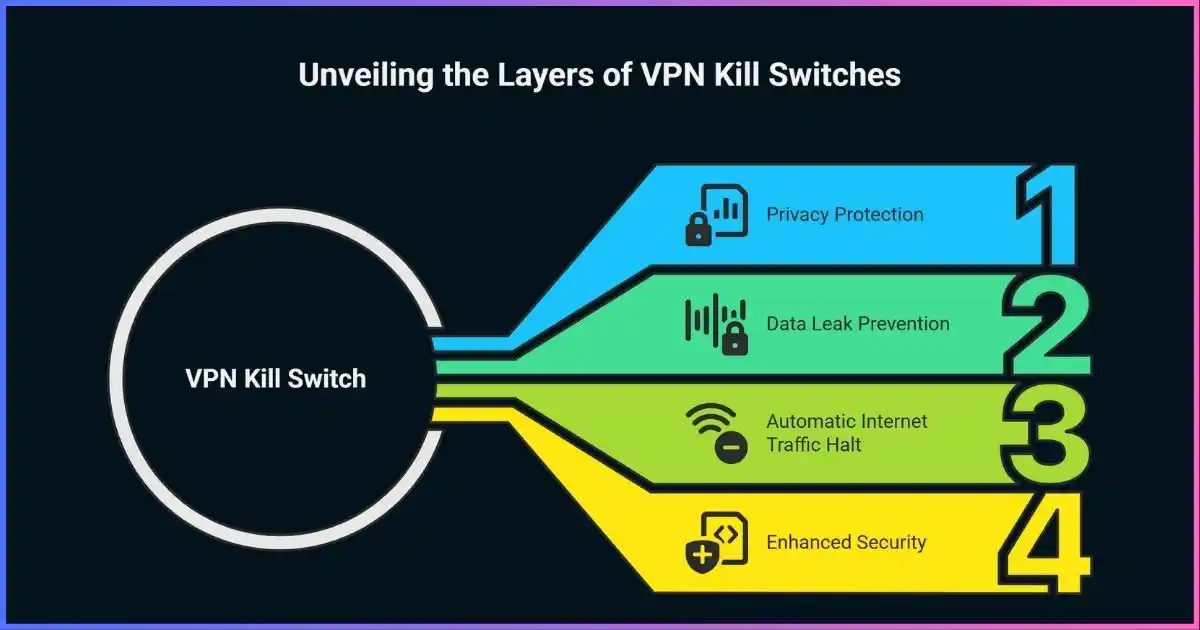
Table of Contents
The safety netWhat Is a VPN Kill Switch?
A VPN creates an encrypted tunnel between your device and a VPN server. If that tunnel fails, most operating systems restore connectivity over Wi-Fi, Ethernet, or mobile data. The fallback is convenient, but websites can then see your ISP-assigned IP and DNS requests may go to your normal resolver.
A kill switch inserts a policy between apps and the network. It allows the traffic needed to establish the VPN, allows protected traffic through the tunnel interface, and denies traffic that tries to use an ordinary interface when protection is required. A page stops loading or a transfer pauses instead of continuing under your real IP.
Kill switch vs. related features
| Feature | Main job | During tunnel failure | Replaces a kill switch? |
|---|---|---|---|
| Kill switch | Blocks unsafe paths | Traffic stops until the secure route returns | — |
| Auto-connect | Starts/restores VPN | Attempts reconnection but may not block the gap | No |
| DNS leak protection | Keeps lookups in tunnel | Protects DNS, not all traffic | No |
| Always-on VPN | Requires VPN connectivity | Can block until VPN is available | Yes, with “block without VPN” |
| Split tunneling | Creates exceptions | Behavior depends on rules and scope | No |
Under the hoodHow a VPN Kill Switch Works
Modern kill switches usually rely on OS firewall, packet-filtering, or VPN framework rules—not repeated IP checks. The app identifies the permitted tunnel interface and VPN server connection, then prevents other routes from carrying protected traffic. Strong implementations cover IPv4, IPv6, DNS, network changes, sleep/wake, connecting, and server changes.
Traffic state during an unexpected disconnect
A working switch changes the failure period from unsafe fallback to blocked.
Allowed
Detected
Denied
Denied
Allowed
A reactive switch may be inactive before the first VPN connection or after you click Disconnect. An always-on mode keeps non-VPN internet unavailable in those states. That distinction matters more than names such as Network Lock or Lockdown Mode.
Firewall rules, routes, and process control
A network-level design typically permits loopback and required local services, permits contact with the selected VPN server, permits traffic through the tunnel, and rejects everything else. Application-level modes instead terminate or suspend named programs. Because APIs differ, the same provider can behave differently across Windows, macOS, Android, iOS, and Linux.
Protection modesTypes of VPN Kill Switches
System-level
Blocks non-VPN traffic for the whole device after a drop. It protects browsers, sync clients, messaging, and background services without an app list.
- Best default
- Broad coverage
- May interrupt LAN devices
Application-level
Closes or blocks selected apps. Ordinary internet can remain available elsewhere, but unlisted processes remain outside its scope.
- Useful for a torrent/work app
- Granular, less comprehensive
- Needs app-list maintenance
Standard/reactive
Engages after an active session fails. Intentional disconnection usually restores normal internet.
- Convenient daily default
- Fewer confusing outages
- Can leave pre-connect gaps
Always-on/permanent
Blocks internet whenever the VPN is unavailable—even after restart or deliberate disconnect.
- Strongest sensitive-work mode
- Prevents forgetting
- Complicates captive portals
Relative protection scope by mode
Qualitative model, not a performance benchmark.
Current implementationsVPN Kill Switch Comparison
Provider support changes by app build and distribution channel. This comparison reflects official documentation reviewed for this update; inspect your exact app before assuming protection is enabled.
| VPN | Coverage | Stricter/app option | Important caveat |
|---|---|---|---|
| NordVPN | Windows, Linux, Android 8+, iOS; macOS varies by app | Windows app switch; Linux also blocks manual disconnect; direct Mac app can close selected apps | Off by default on Windows, Android, macOS, and Linux; automatic on iOS. Mac builds differ. |
| ExpressVPN | Windows, macOS, Linux, Android, iOS, routers | “Enable at all times” on Windows, Mac, Linux | Standard mode is default but does not block deliberate disconnect; router switch cannot be disabled. |
| Proton VPN | Windows, macOS, Linux, Android (OS), iOS/iPadOS | Advanced on Windows/Linux; iOS/iPadOS advanced is beta | Documents brief Mac server-switch exposure and some Apple-service DNS exceptions. |
| Surfshark | Windows, macOS, Android, iOS, Linux | Options vary by platform/build | Linux switch is in Snap and .deb packages, not Flatpak. |
Feature comparison, not a claim of identical leak resistance. OS updates, protocol choice, split-tunnel rules, and app versions affect results.
Want both system-wide and per-app controls? NordVPN offers Internet and App Kill Switch modes on Windows plus platform-specific protection elsewhere.
Try NordVPN Risk-Free →Device differencesHow Kill Switches Behave by Platform
Windows
Apps can use Windows Filtering Platform and routing controls. Windows commonly offers both device-wide and app-specific modes. Check reboot persistence, LAN exemptions, and whether split-tunneled apps intentionally stay outside the VPN.
macOS
Apps use Apple networking frameworks and packet-filtering capabilities. App Store builds may differ from direct downloads. Test server switching, sleep/wake, Wi-Fi changes, and local printer/NAS behavior.
Android
Android provides native Always-on VPN and Block connections without VPN. Google’s Android VPN documentation confirms always-on VPN can block connections that do not use it. Menu names vary, and strict mode may block LAN traffic.
iPhone and iPad
iOS apps operate inside Apple’s Network Extension framework. Providers may reconnect automatically and offer standard or advanced modes, but Apple-controlled traffic can create documented exceptions. Test independently rather than inferring behavior from Windows.
Linux
Linux clients commonly use nftables/iptables, policy routing, and interface rules. Protection can depend on GUI, CLI, NetworkManager, or manual profiles. Importing WireGuard/OpenVPN alone does not guarantee a fail-closed firewall.
Routers and browser extensions
A router kill switch can protect devices that cannot run VPN apps, if their traffic uses that router policy. Browser extensions normally protect browser traffic only and are not system-wide unless they control the full desktop VPN app. A kill switch also does not provide obfuscation or unblock a filtered service by itself; see how to unblock websites with VPNs or proxies for those separate techniques.
Failure conditionsWhen VPN Tunnels Drop—and What Can Leak
A laptop wakes, a phone moves from Wi-Fi to 5G, a router renews its address, a server restarts, a VPN process crashes, or battery management pauses it. Network handoffs and captive portals are especially valuable stress tests.
Network handoff
Changing interface changes the default route. Queued connections can resume before the VPN.
Sleep and wake
The physical interface may return before the tunnel; background apps reconnect immediately.
Server/protocol failure
Maintenance, blocked ports, or process failure removes encryption while the normal route remains.
Configuration conflict
Split tunneling, custom DNS, endpoint security, another VPN, or firewall tools can compete with rules.
If fallback occurs, destinations can see your ISP IP, your ISP can observe destination addresses or DNS, and peer-to-peer sessions can advertise the non-VPN address. HTTPS still encrypts page content, but does not hide destination IPs or replace VPN privacy.
ConfigurationHow to Enable a VPN Kill Switch Safely
- Update the OS and VPN app.Restart if the installer replaces a VPN service or extension.
- Open connection/privacy settings.Look for Kill Switch, Network Lock, Lockdown, or Always-on VPN. Auto-connect alone is not enough.
- Choose scope.Use device-wide protection by default; app mode knowingly leaves other traffic online.
- Choose strictness.Always-on is safest; standard is easier around captive portals.
- Review LAN and split-tunnel exceptions.Allow only what you actually need.
- Enable startup auto-connect.It restores protection; the switch covers the gap.
- Run the tests below.Repeat after major OS/VPN updates.
On Android, open system VPN settings for your provider, enable Always-on VPN, then Block connections without VPN. Elsewhere, use the provider app because names and modes vary.
VerificationHow to Test for IP and DNS Leaks
Testing must prove traffic stops during failure and returns through the VPN—not the ISP. Save your normal and VPN-assigned IP addresses first.
- Establish a baseline.With VPN off, note public IPv4/IPv6 and DNS. Connect and confirm they change.
- Create continuous traffic.Use a repeating request, stream, or harmless download.
- Force an unexpected failure.Toggle Wi-Fi, swap Wi-Fi/Ethernet, or move between Wi-Fi and mobile data. Clicking Disconnect does not test reactive mode.
- Observe the gap.Traffic should fail or pause. The baseline IP and ISP resolver must not appear.
- Repeat transitions.Test sleep/wake, server and protocol changes, app termination, reboot, IPv6, and split-tunneled apps.
Five-event stress-test checklist
Pass only when traffic blocks during the gap and resumes with VPN IP/DNS.
See DNS leaks and how to prevent them for resolver testing. If your normal IP appears, stop sensitive activity, disable conflicting tools, update the app, and report the OS, protocol, and reproduction steps.
When internet stopsKill Switch Troubleshooting
| Symptom | Likely cause | What to try |
|---|---|---|
| No internet after closing VPN | Permanent rules remain | Reopen and disconnect normally; change strict mode if safe; restart app/service/device. |
| Captive portal will not open | Portal must load before tunnel | Use the provider captive-portal flow; reconnect immediately after authentication. |
| Printer/NAS disappears | LAN traffic blocked | Allow LAN only on trusted networks or exempt the required device/subnet. |
| Connected but pages fail | DNS, firewall, protocol conflict | Restore automatic DNS, change protocol, remove duplicate profiles, inspect firewall logs. |
| Leak during server change | Rules removed too early | Enable always-on, change protocol, update, and report the reproducible sequence. |
| Split app loses access | Switch overrides bypass | Check documented interaction and decide which policy takes priority. |
Buying criteriaHow to Choose a Reliable Kill Switch
Look for native support on every device, device-wide and always-on modes, clear status/defaults, IPv6 and DNS coverage, explicit LAN/split-tunnel exceptions, and a record of transparent security updates. Then test it. Audits help, but a label or marketing page does not prove your configuration is leak-free.
Also compare logging policy, protocols, app security, ownership, servers, and performance. See how to choose the right VPN, split vs. full tunneling, and how VPNs work.
Recommended starting point: NordVPN combines a system-wide Internet Kill Switch with a Windows App Kill Switch and platform-specific controls. Enable it, then run the five-event test.
Get NordVPN With a 30-Day Guarantee →Common questionsVPN Kill Switch FAQ
Should I leave it on all the time?
Does it slow down a VPN?
Why does internet stop after I disconnect?
Does it prevent DNS leaks?
Does it work with split tunneling?
Can it protect a torrent client?
Do free VPNs include one?
Will it block local devices?
Bottom Line: Use Fail-Closed Protection, Then Test It
Prefer a system-wide, always-on implementation; pair it with auto-connect; understand LAN and split-tunnel exceptions; and test Wi-Fi handoffs, sleep/wake, process failure, and reboot. The best kill switch is the one that demonstrably prevents your device from sending protected traffic outside the tunnel.
Sources & comparison methodology
Current provider support documentation and OS networking references were compared by platform, scope, disconnect behavior, reboot persistence, LAN handling, and known limitations. Product labels were normalized into app-level, system-wide reactive, and always-on modes. Conceptual charts explain scope and tests; they do not use invented performance or adoption figures.
- Android Developers: VPN connectivity and blocking connections without VPN.
- WireGuard: routing and kill-switch firewall guidance.
- Provider documentation reviewed: NordVPN Kill Switch; ExpressVPN Internet Kill Switch/Network Lock; Proton VPN kill switch; Surfshark Kill Switch and Linux package notes.
VPN apps change frequently. Recheck provider documentation and test your exact OS, build, protocol, and settings.
Affiliate disclosure: Some links are affiliate links. We may earn a commission at no extra cost to you; this does not change our technical criteria.